
Most SQL Server migrations don't fail on the big decision. They fail on a forgotten login, a job that didn't come across, a linked server nobody documented, or a query that ran fine on the old box and fell off a cliff on the new one. The big choices are easy to reason about; the details are what bite.
This is the repeatable playbook I run, whether it's a version upgrade (say SQL Server 2016 to 2022) or a platform move to the cloud. The two overlap heavily — the same sequence works — but I'll flag where they diverge.
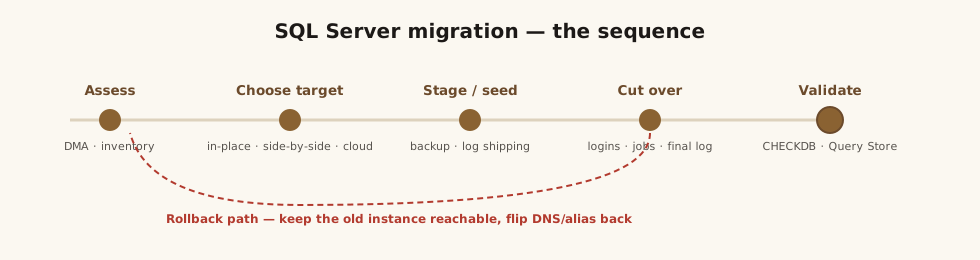
Assessing the source environment
You can't migrate what you haven't inventoried. Before anything moves, capture:
- Versions, editions, and database sizes on the source.
- Everything outside the database files: SQL Agent jobs, linked servers, logins, credentials, certificates, database mail profiles, and server-level settings.
- Dependencies — applications, ETL, reports, and other servers that connect in.
Microsoft's free Data Migration Assistant (DMA) does the compatibility and feature-parity analysis for you: it flags breaking changes, behavior changes, and deprecated features for your target version. For a version jump, that report is your risk list.
Choosing the target: in-place, side-by-side, or cloud
Three shapes, in rough order of risk:
- In-place upgrade — upgrade the engine on the existing box. Fast and cheap, but there's no clean rollback and the server is down during the upgrade. Acceptable for low-stakes instances with a tested backup and a maintenance window you trust.
- Side-by-side — stand up a new instance, migrate the databases, validate, then cut over. This is the default I recommend: you get to test the new environment under real conditions before committing, and rollback is just "don't flip the switch."
- Cloud — Azure SQL Database, Azure SQL Managed Instance, SQL Server on a VM, AWS RDS, or EC2. The target you pick changes both the method and the feature parity you'll live with — that comparison is its own decision, covered in Azure SQL vs. AWS RDS for SQL Server. For near-zero-downtime cloud moves, the Managed Instance Link feature (continuous log-based replication from an on-prem instance) and Azure Database Migration Service's online mode keep the source live until you cut over.
Compatibility level and the cardinality estimator
Here's the upgrade detail that generates the most "it got slower after we moved" tickets: the cardinality estimator (CE).
SQL Server got a new CE in 2014, and it changes how the optimizer estimates row counts — usually for the better, sometimes dramatically worse for a specific query. The safe pattern is to upgrade the engine but keep the old database compatibility level, get stable, then raise the compat level deliberately and watch for regressions.
If a raise causes trouble, you have graceful escape hatches instead of an emergency: the LEGACY_CARDINALITY_ESTIMATION database-scoped option, and Query Store to catch and, if needed, force the old plan while you fix the query properly (parameter sniffing and bad plans).
Migration methods
Match the method to size and downtime tolerance:
| Method | Best for | Downtime |
|---|---|---|
| Backup / restore | Most databases | Length of final restore |
| Detach / attach | Same-server moves | Short |
| Log shipping | Large DBs, tight windows | Minimal (final log only) |
| AG seeding | Already on Always On | Minimal |
| Azure Database Migration Service (assessed with DMA) | Cloud targets | Online (MI / SQL VM) or offline |
For anything large where downtime is precious, log shipping (or AG-based seeding) lets you pre-stage the data and cut over with only a final log restore.
The cutover plan
The migration is the easy part; the cutover is where the forgotten details live. Pre-cutover checklist:
- Sync logins and fix orphaned users —
sp_help_revloginto script SQL logins with their SIDs intact, then reconcile; where a database user's SID no longer lines up,ALTER USER [name] WITH LOGIN = [name]re-maps it without dropping the user's permissions. - SQL Agent jobs, operators, and alerts.
- Linked servers, credentials, certificates, and database mail.
- Connection strings / DNS / aliases — decide now how apps will be repointed.
Then: freeze writes, take the final log backup and restore it, flip connectivity, and run a smoke test before you tell anyone it's done.
Rollback: your safety net
Define the rollback trigger and time-box it before cutover — "if the smoke test isn't green by X, we roll back" — so nobody's improvising under pressure. Keep the old instance intact and reachable, and drive the switch with a DNS name or SQL alias rather than hard-coded server names; that makes rollback a single flip instead of a redeploy. The side-by-side approach earns its keep here.
Post-migration validation
Cutover isn't done until it's verified:
- Row counts / checksums on key tables against the source.
DBCC CHECKDBon the migrated databases.- Page verify — confirm each database is set to
PAGE_VERIFY CHECKSUM; databases dragged forward from old versions are sometimes still onTORN_PAGE_DETECTIONorNONE. - Update statistics with a full scan so the new engine plans on good numbers.
- Query Store baseline on the new instance, compared against the old one — this is where CE regressions show up in the first few days.
- Application smoke tests against the real workload.
A migration run this way is boring, which is the goal. If you'd rather have it planned, staged, and cut over with a real rollback path, that's exactly the kind of engagement I take — see SQL Server migration services, review client results, or get in touch.
References
- Data Migration Assistant (DMA) — Microsoft Learn. Dma overview — Microsoft Learn
- Cardinality estimation & compatibility level — Microsoft Learn. Cardinality estimation sql server — Microsoft Learn
- Transfer logins with
sp_help_revlogin— Microsoft Support. Transfer logins passwords between instances — Microsoft Learn